If you’re a local business, there’s one thing your potential customers always look for — your location. And nothing makes it easier to find you than a Google Map embedded right on your website.
But did you know that embedding Google Maps can also improve your local SEO and bring more foot traffic to your store, clinic, or office?
Let’s explore how a simple map can boost your visibility — and how you can embed it in just a few clicks!
Why Embedding Google Maps Matters for Local Businesses
Adding a Google Map to your website isn’t just about looks — it’s about function and search visibility. Here’s what it helps with:
- Builds Trust – Shows your business is real and easy to find
- Improves User Experience – Customers can instantly see where you’re located
- Boosts Local SEO – Google reads embedded maps as proof of local presence
- Increases Foot Traffic – Helps people get directions directly from your website
How Google Maps Supports Local SEO
Search engines prioritize businesses that are well-connected to their location. Embedding a map:
- Reinforces your NAP (Name, Address, Phone) consistency
- Enhances your local relevance signals
- Encourages longer time on site (a positive ranking signal)
- Connects your business to Google Maps listings and reviews
That’s why local SEO experts always recommend adding a map to your homepage, contact page, or service area section.
How to Embed Google Maps on Your Website (Step-by-Step)
Step 1: Search for Your Business on Google Maps

Go to Google Maps and type your business name or address.
Step 2: Click the “Share” Button
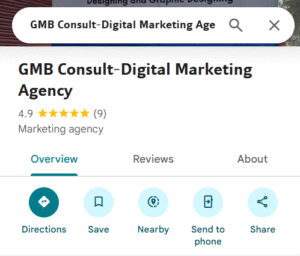
Once your location pops up, click the “Share” button on the left.
Step 3: Select “Embed a Map”
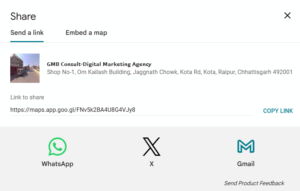
In the popup, click “Embed a map”. Choose your preferred map size (Small, Medium, Large, or Custom).
Step 4: Copy the HTML Code
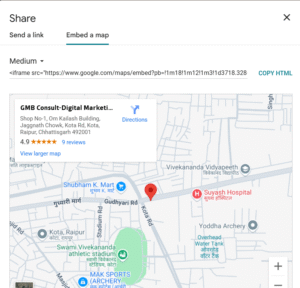
Copy the HTML <iframe> code provided.
Step 5: Paste Into Your Website
- For HTML websites: Paste the code where you want the map to appear (often on the contact page).
- For WordPress: Use a custom HTML block or your theme’s widget section to add the code.
Here’s what the code looks like:

html
CopyEdit
<iframe src=”https://www.google. com/maps/embed?pb=…” width=”600″ height=”450″ style=”border:0;” allowfullscreen=”” loading=”lazy”></iframe>
Pro Tips for Map SEO Optimization
- Embed the exact location linked to your verified Google Business Profile
- Add the map near your contact details or footer
- Use schema markup (LocalBusiness) on the same page
- Encourage users to leave Google reviews – they’ll show up on the map
Make sure your business info matches across all platforms
Where to Place Google Maps on Your Website
- Homepage – Boost visibility and SEO signals
- Contact Us Page – Helps with direct direction
- Store Locator or Branch Page – If you have multiple locations
- Landing Pages – For local campaigns or city-specific services
Final Thoughts
A simple Google Map can do wonders — not just to guide customers to your doorstep, but also to boost your credibility, trust, and SEO visibility.
In just five minutes, you can embed a live, interactive map on your site that:
- Helps customers find you
- Increases walk-in traffic
- Strengthens your local presence on Google
Don’t just be listed — be found. Start with Google Maps today!