Step-by-Step: Create a Local Business Schema
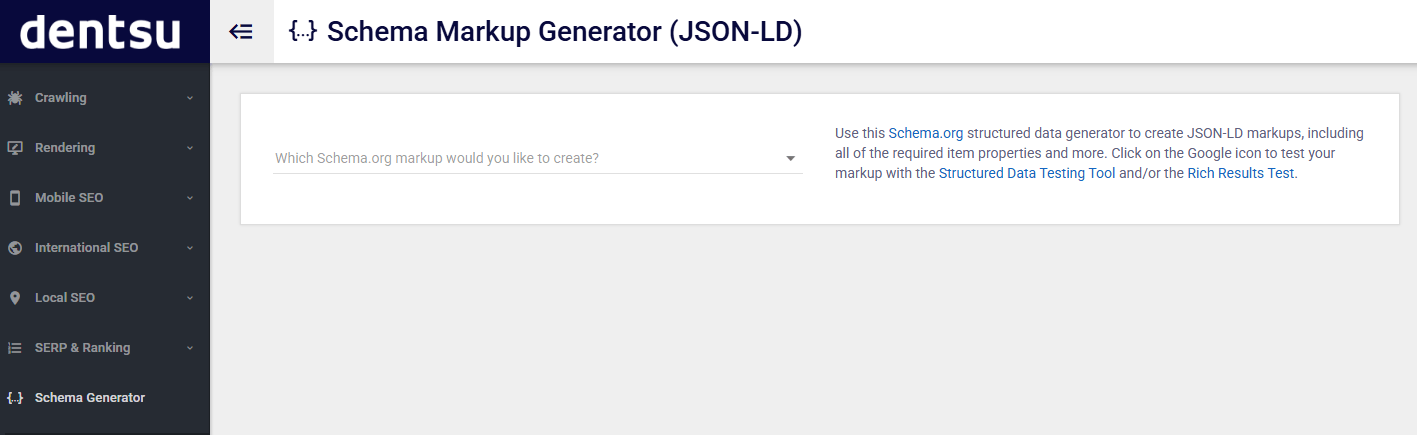
🔗 Step 1: Visit the Tool
Go to –Technical Seo
Step 2: Select Schema Type
From the dropdown labeled “Which Schema.org markup would you like to create?”:
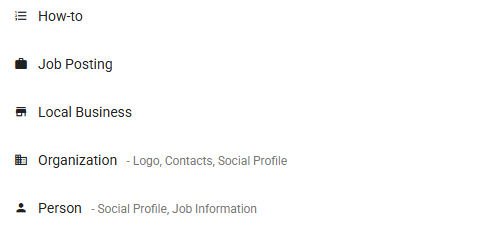
Click the dropdown
Choose “Local Business” from the list (as shown in your second image)
Step 3: Fill in Business Details
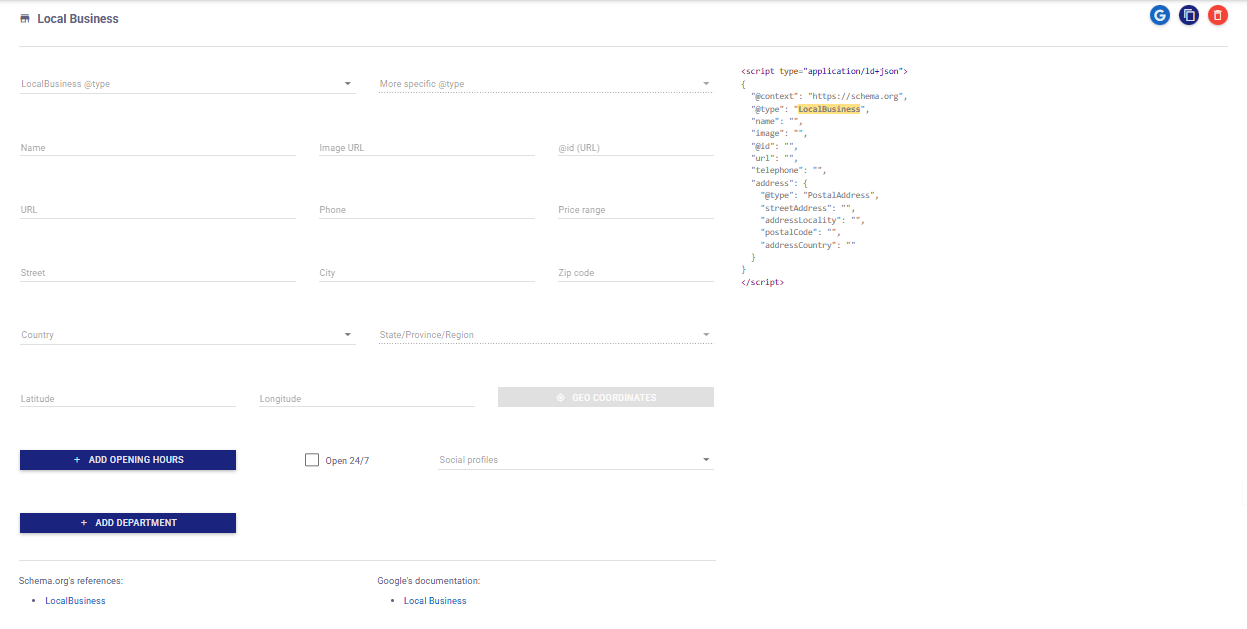
Now complete the form with relevant business information. Fields include:
➤ Basic Info:
LocalBusiness @type: Select a specific type like
Restaurant,Dentist, etc.More specific @type (optional): Adds a subtype if applicable.
Name: Your business name (e.g., “Joe’s Coffee Shop”)
Image URL: Link to a representative image (e.g., logo or storefront)
URL: Your website’s homepage
Phone: Business contact number
Price Range: e.g.,
$$
➤ Address:
Street: Full street address
City
Zip Code
Country
State/Province/Region
➤ Geo Coordinates:
Latitude and Longitude for maps and location services
➤ Open Hours:
Click “Add Opening Hours” and specify:
Days open
Opening and closing times
Check the “Open 24/7” box if applicable
➤ Social Profiles:
Click on the dropdown to add links to:
Facebook
Twitter
LinkedIn
Instagram, etc.
➤ Department (Optional):
If your business has departments (e.g., Bakery, Pharmacy), you can add them via the “Add Department” button.
<script type=”application/ld+json”>
{
“@context”: “https://schema.org”,
“@type”: “LocalBusiness”,
“name”: “Joe’s Coffee Shop”,
“image”: “https://example.com/logo.jpg”,
“url”: “https://joescoffee.com”,
“telephone”: “+1-800-555-0199”,
“address”: {
“@type”: “PostalAddress”,
“streetAddress”: “123 Brew St”,
“addressLocality”: “Seattle”,
“postalCode”: “98101”,
“addressCountry”: “US”
},
“geo”: {
“@type”: “GeoCoordinates”,
“latitude”: “47.6062”,
“longitude”: “-122.3321”
},
“openingHours”: [“Mo-Fr 08:00-18:00”],
“sameAs”: [
“https://facebook.com/joescoffee”,
“https://instagram.com/joescoffee”
]
}
</script>
Step 5: Validate & Copy
Click the Google icon (top right of the JSON box) to test your markup using:
Once valid, copy the JSON-LD code and paste it into your website’s <head> section or embed it through a tag manager.
Pro Tips for Better Results
- Keep your Name, Address, and Phone (NAP) consistent everywhere
Use high-quality logo and business images
Add services and locations you serve
Update your schema when any detail changes
Connect with your Google Business Profile for stronger results
Final Thoughts
If you’re serious about growing your local presence, schema markup is a must. It’s a simple addition to your site that can bring in more traffic, more calls, and more customers.